Changing your Password
Your email address and password are used to access both the Hub and the App.
You can only change or reset your password from the Hub.
On the Hub
Any images displayed are representative only and may differ depending on the version being used.
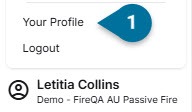
| View your profile here
|
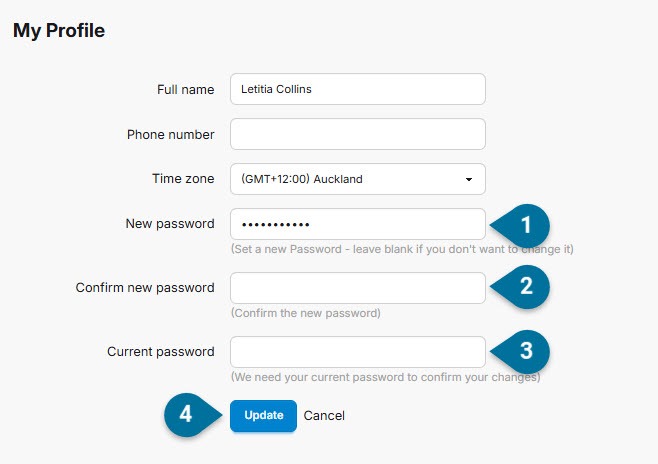
| On the profile page, enter the new password Confirm the new password Enter your current password Click 'Update'
|
On Device
Android:
If you are logging in for the first time, log in with your email address and new password.
If you are already logged in to the App, no action is required. The App will continue to work as normal.
iOS:
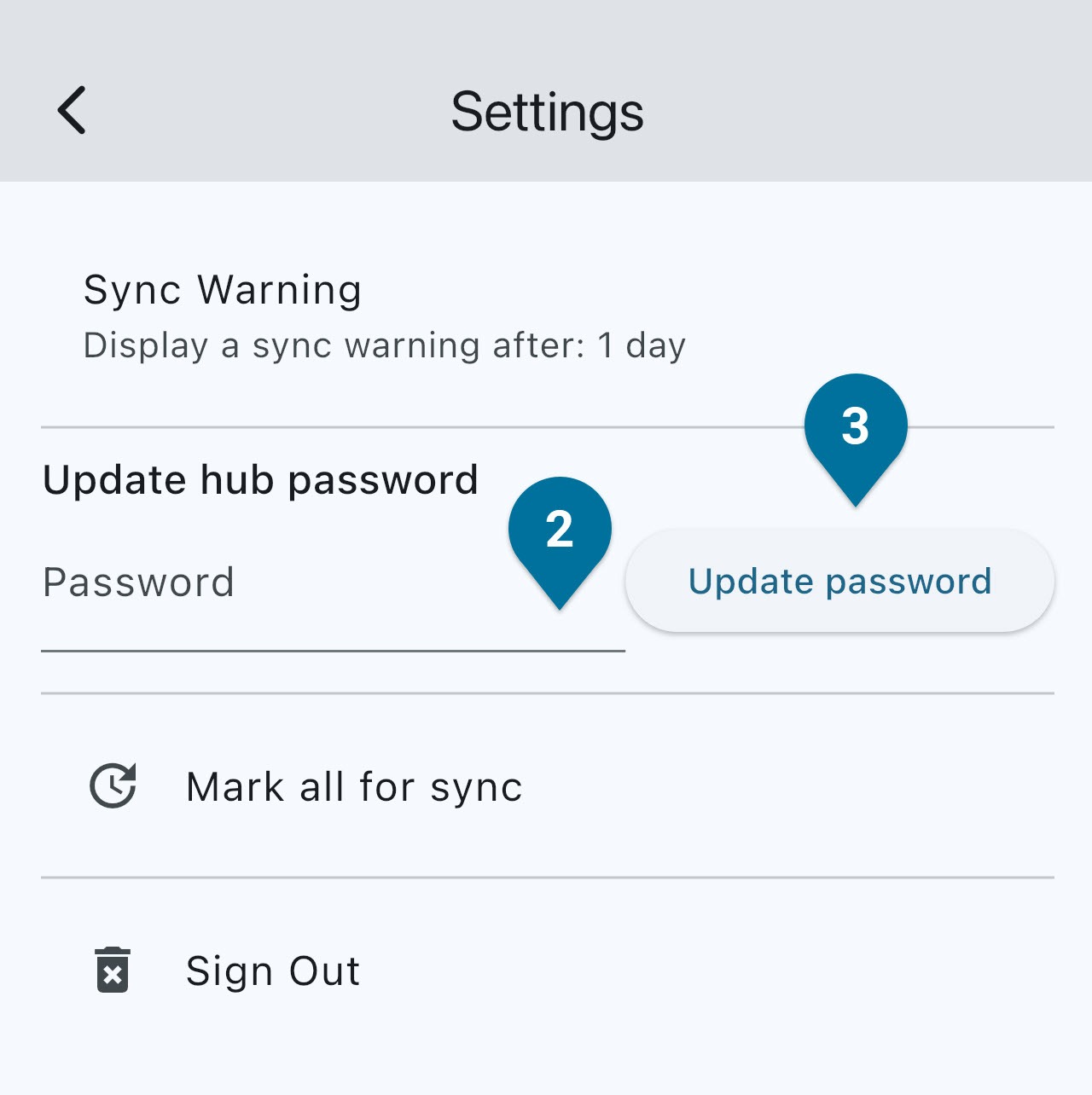
| If you are already logged in to the App and your hub password has changed: Open Settings Enter your new password Tap Update password
Once updated, the App will resume syncing normally. |
Forgotten password
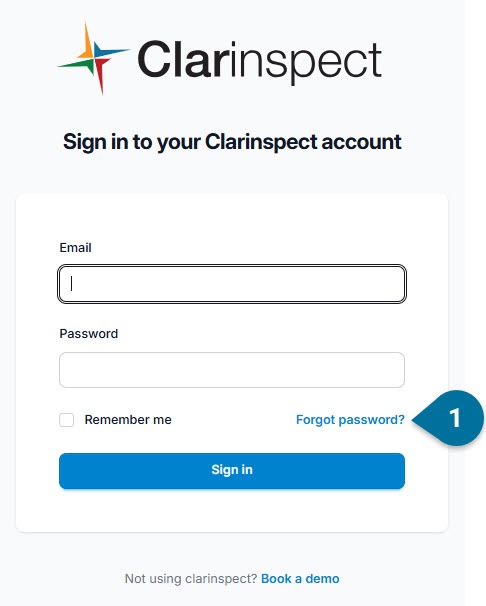
| From the Hub login screen, click ‘Forgot password?’
|
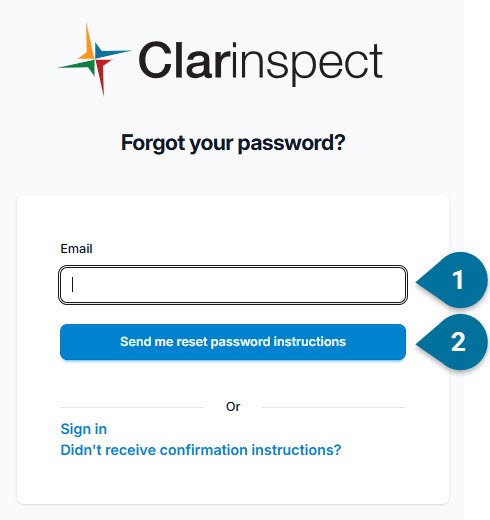
| Type your email here Click ‘Send me reset password instructions’
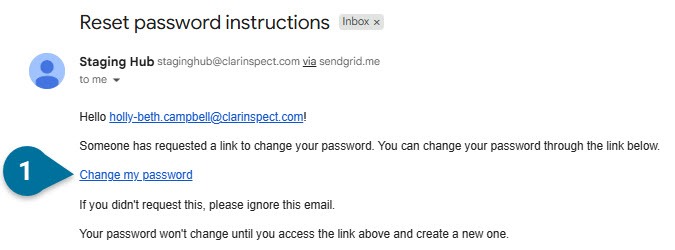
This will send an email to your inbox which will allow you to reset your password.
If an email doesn’t show up, click ‘Didn’t receive confirmation instructions?’ which will resend the email.
|
|
Click link to change password
|
Once you click ‘Change my password’, you will be taken to the Hub.
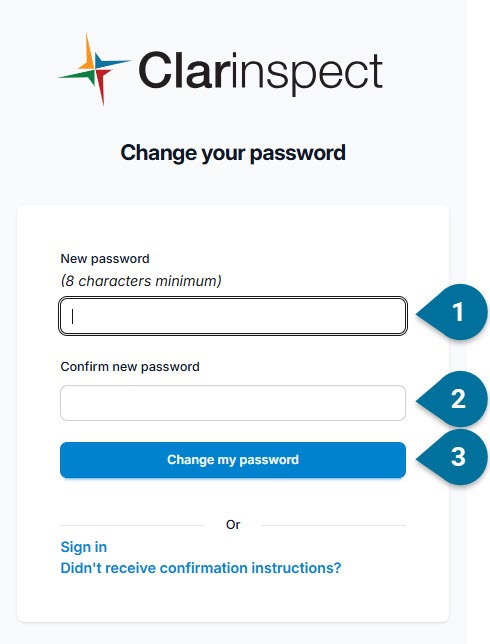
| Add new password Type new password in again Click ‘Change my password’
|
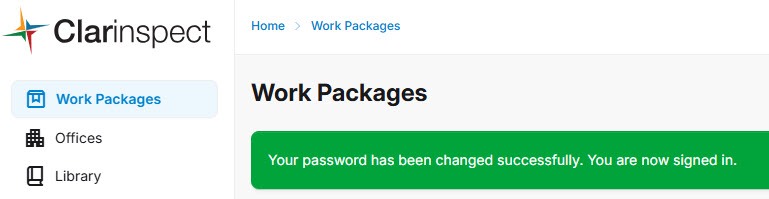
Note: If you change your password on the hub you will be able to continue working on the Android app as usual without having to sign back in. If you are on iOS, you will need to re-log in with your new password. |